4.5.2
Topologi
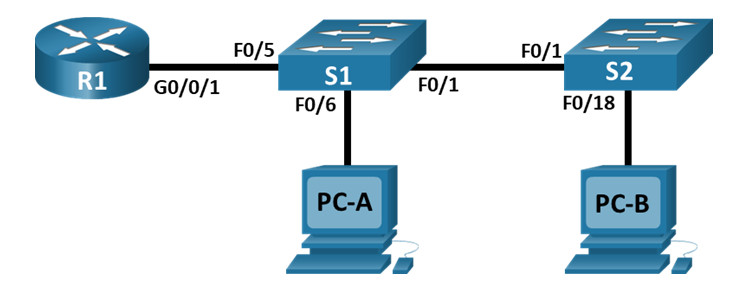
Tabel Pengalamatan
| Perangkat | Antarmuka | Alamat IP | Masker Subnet | Gerbang Default |
|---|---|---|---|---|
| R1 | G0/0/1.10 | 192.168.10.1 | 255.255.255.0 | Tidak tersedia |
| G0/0/1.20 | 192.168.20.1 | 255.255.255.0 | ||
| G0/0/1.30 | 192.168.30.1 | 255.255.255.0 | ||
| G0/0/1.1000 | Tidak tersedia | Tidak tersedia | ||
| S1 | Bahasa Indonesia:VLAN10 | 192.168.10.11 | 255.255.255.0 | 192.168.10.1 |
| S2 | Bahasa Indonesia:VLAN10 | 192.168.10.12 | 255.255.255.0 | 192.168.10.1 |
| PC-A | NIC | 192.168.20.3 | 255.255.255.0 | 192.168.20.1 |
| PC-B | NIC | 192.168.30.3 | 255.255.255.0 | 192.168.30.1 |
Tabel VLAN
| Bahasa Indonesia: VLAN | Nama | Antarmuka Ditugaskan |
|---|---|---|
| 10 | Pengelolaan | S1: VLAN10 S2: VLAN10 |
| 20 | Penjualan | Kelas 1: F0/6 |
| 30 | Operasi | Kelas 2: F0/18 |
| 999 | Tempat_Parkir | Kelas 1: F0/2-4, F0/7-24, G0/1-2 Kelas 2: F0/2-17, F0/19-24, G0/1-2 |
| 1000 | Warga asli | Tidak tersedia |
Tujuan
- Bagian 1: Membangun Jaringan dan Mengonfigurasi Pengaturan Dasar Perangkat
- Bagian 2: Membuat VLAN dan Menetapkan Port Switch
- Bagian 3: Konfigurasikan Trunk 802.1Q antara Switch
- Bagian 4: Konfigurasikan Perutean Antar-VLAN pada Router
- Bagian 5: Verifikasi bahwa Perutean Antar-VLAN berfungsi
Latar Belakang / Skenario
Switch modern menggunakan jaringan area lokal virtual (VLAN) untuk meningkatkan kinerja jaringan dengan memisahkan domain siaran Layer 2 yang besar menjadi domain yang lebih kecil. VLAN juga dapat digunakan sebagai langkah pengamanan dengan memisahkan lalu lintas data sensitif dari jaringan lainnya. Secara umum, VLAN memudahkan perancangan jaringan untuk mendukung tujuan suatu organisasi. Komunikasi antar VLAN memerlukan perangkat yang beroperasi pada Layer 3 model OSI. Menambahkan router antar-VLAN memungkinkan organisasi untuk memisahkan dan memisahkan domain siaran sekaligus memungkinkan mereka untuk berkomunikasi satu sama lain.
VLAN trunk digunakan untuk menjangkau VLAN di beberapa perangkat. Trunk memungkinkan lalu lintas dari beberapa VLAN untuk berjalan melalui satu tautan, sekaligus menjaga identifikasi dan segmentasi VLAN tetap utuh. Jenis perutean antar-VLAN tertentu, yang disebut “Router-on-a-Stick”, menggunakan trunk dari router ke switch untuk memungkinkan semua VLAN melewati router.
Di lab ini, Anda akan membuat VLAN di kedua switch dalam topologi, menetapkan VLAN ke port akses switch, memverifikasi bahwa VLAN berfungsi seperti yang diharapkan, membuat trunk VLAN antara kedua switch dan antara S1 dan R1, dan mengonfigurasi perutean antar-VLAN di R1 untuk memungkinkan host dalam VLAN yang berbeda untuk berkomunikasi, terlepas dari subnet tempat host berada.
Note: The routers used with CCNA hands-on labs are Cisco 4221 with Cisco IOS XE Release 16.9.4 (universalk9 image). The switches used in the labs are Cisco Catalyst 2960s with Cisco IOS Release 15.2(2) (lanbasek9 image). Other routers, switches, and Cisco IOS versions can be used. Depending on the model and Cisco IOS version, the commands available and the output produced might vary from what is shown in the labs. Refer to the Router Interface Summary Table at the end of the lab for the correct interface identifiers.
Note: Ensure that the routers and switches have been erased and have no startup configurations. If you are unsure contact your instructor.
Instructor Note: Refer to the Instructor Lab Manual for the procedures to initialize and reload devices.
Required Resources
- 1 Router (Cisco 4221 with Cisco IOS XE Release 16.9.4 universal image or comparable)
- 2 Switches (Cisco 2960 with Cisco IOS Release 15.2(2) lanbasek9 image or comparable)
- 2 PCs (Windows with a terminal emulation program, such as Tera Term)
- Console cables to configure the Cisco IOS devices via the console ports
- Ethernet cables as shown in the topology
Instructions
Part 1: Build the Network and Configure Basic Device Settings
In Part 1, you will set up the network topology and configure basic settings on the PC hosts and switches.
Step 1: Cable the network as shown in the topology.
Attach the devices as shown in the topology diagram, and cable as necessary.
Step 2: Configure basic settings for into the router and enable privil
router> enableb. Enter configuration mode
router# config terminalc. Ubah hostname menjadi R1
router(config)# hostname R1d. Disable DNS lookup
R1(config)# no ip domain lookupe. Tambahkan class untuk privileged EXEC encrypted password.
R1(config)# enable secret classf. Tambahkan cisco untuk console password and enable login.
R1(config)# line console 0
R1(config-line)# password cisco
R1(config-line)# login
g. Assign cisco as the vty password and enable login.
R1(config)# line vty 0 4
R1(config-line)# password cisco
R1(config-line)# login
h. Encrypt the plaintext passwords.
R1(config)# service password-encryptioni. Buat banner motd dengan unauthorized access is prohibited.
R1(config)# banner motd $ Authorized Users Only! $j. Save the running configuration to the startup configuration file.
R1(config)# exit
R1# copy running-config startup-config
k. Set the clock on the router.
R1# clock set 15:30:00 27 Aug 2019Step 3: Configure basic settings for each switch.
a. Assign a device name to the switch.
switch(config)# hostname S1

switch(config)# hostname S2
b. Disable DNS lookup to prevent the router from attempting to translate incorrectly entered commands as though they were host names.
S1(config)# no ip domain-lookup

S2(config)# no ip domain-lookup
c. Assign class as the privileged EXEC encrypted password.
S1(config)# enable secret class

S2(config)# enable secret class
d. Assign cisco as the console password and enable login.
S1(config)# line console 0
S1(config-line)# password cisco
S1(config-line)# login

S2(config)# line console 0
S2(config-line)# password cisco
S2(config-line)# login
e. Assign cisco as the vty password and enable login.
S1(config)# line vty 0 4
S1(config-line)# password cisco
S1(config-line)# login

S2(config)# line vty 0 4
S2(config-line)# password cisco
S2(config-line)# login
f. Encrypt the plaintext passwords.
S1(config)# service password-encryption

S2(config)# service password-encryption
g. Create a banner that warns anyone accessing the device that unauthorized access is prohibited.
S1(config)# banner motd $ Authorized Users Only! $
S2(config)# exit

S2(config)# banner motd $ Authorized Users Only! $
S2(config)# exit
h. Set the clock on the switch.
S1# clock set 15:30:00 27 Aug 2019

S2# clock set 15:30:00 27 Aug 2019
i. Save the running configuration to the startup configuration.
S1# copy running-config startup-config

S2# copy running-config startup-config
Step 4: Configure PC hosts.
Refer to the Addressing Table for PC host address information.
Part 2: Create VLANs and Assign Switch Ports
In Part 2, you will create VLANs as specified in the table above on both switches. You will then assign the VLANs to the appropriate interface and verify your configuration settings. Complete the following tasks on each switch.
Step 1: Create VLANs on both switches.
a. Create and name the required VLANs on each switch from the table above.
S1(config)# vlan 10
S1(config-vlan)# name Management
S1(config-vlan)# vlan 20
S1(config-vlan)# name Sales
S1(config-vlan)# vlan 30
S1(config-vlan)# name Operations
S1(config-vlan)# vlan 999
S1(config-vlan)# name Parking_Lot
S1(config-vlan)# vlan 1000
S1(config-vlan)# name Native
S1(config-vlan)# exit

S2(config)# vlan 10
S2(config-vlan)# name Management
S2(config-vlan)# vlan 20
S2(config-vlan)# name Sales
S2(config-vlan)# vlan 30
S2(config-vlan)# name Operations
S2(config-vlan)# vlan 999
S2(config-vlan)# name Parking_Lot
S2(config-vlan)# vlan 1000
S2(config-vlan)# name Native
S2(config-vlan)# exit
b. Configure the management interface and default gateway on each switch using the IP address information in the Addressing Table.
S1(config)# interface vlan 10
S1(config-if)# ip address 192.168.10.11 255.255.255.0
S1(config-if)# no shutdown
S1(config-if)# exit
S1(config)# ip default-gateway 192.168.10.1

S2(config)# interface vlan 10
S2(config-if)# ip address 192.168.10.12 255.255.255.0
S2(config-if)# no shutdown
S2(config-if)# exit
S2(config)# ip default-gateway 192.168.10.1
c. Assign all unused ports on the switch to the Parking_Lot VLAN, configure them for static access mode, and administratively deactivate them.
Note: The interface range command is helpful to accomplish this task with as few commands as necessary.
S1(config)# interface range f0/2 - 4 , f0/7 - 24 , g0/1 - 2
S1(config-if-range)# switchport mode access
S1(config-if-range)# switchport access vlan 999
S1(config-if-range)# shutdown

S2(config)# interface range f0/2 - 17 , f0/19 - 24 , g0/1 - 2
S2(config-if-range)# switchport mode access
S2(config-if-range)# switchport access vlan 999
S2(config-if-range)# shutdown
Step 2: Assign VLANs to the correct switch interfaces.
a. Assign used ports to the appropriate VLAN (specified in the VLAN table above) and configure them for static access mode.
S1(config)# interface f0/6
S1(config-if)# switchport mode access
S1(config-if)# switchport access vlan 20

S2(config)# interface f0/18
S2(config-if)# switchport mode access
S2(config-if)# switchport access vlan 30
b. Verify that the VLANs are assigned to the correct interfaces.
S1# show vlan brief

VLAN Name                             Status    Ports
---- -------------------------------- --------- -------------------------------
1    default                          active    Fa0/1, Fa0/5
10   Management                       active
20   Sales                            active    Fa0/6
30   Operations                       active
999  Parking_Lot                      active    Fa0/2, Fa0/3, Fa0/4, Fa0/7
                                                Fa0/8, Fa0/9, Fa0/10, Fa0/11
                                                Fa0/12, Fa0/13, Fa0/14, Fa0/15
                                                Fa0/16, Fa0/17, Fa0/18, Fa0/19
                                                Fa0/20, Fa0/21, Fa0/22, Fa0/23
                                                Fa0/24, Gi0/1, Gi0/2
1000 Native                           active
1002 fddi-default                     act/unsup
1003 token-ring-default               act/unsup
1004 fddinet-default                  act/unsup
1005 trnet-default                    act/unsup

S2# show vlan brief

VLAN Name                             Status    Ports
---- -------------------------------- --------- -------------------------------
1    default                          active    Fa0/1
10   Management                       active
20   Sales                            active
30   Operations                       active    Fa0/18
999  Parking_Lot                      active    Fa0/2, Fa0/3, Fa0/4, Fa0/5
                                                Fa0/6, Fa0/7, Fa0/8, Fa0/9
                                                Fa0/10, Fa0/11, Fa0/12, Fa0/13
                                                Fa0/14, Fa0/15, Fa0/16, Fa0/17
                                                Fa0/19, Fa0/20, Fa0/21, Fa0/22
                                                Fa0/23, Fa0/24, Gi0/1, Gi0/2
1000 Native                           active
1002 fddi-default                     act/unsup
1003 token-ring-default               act/unsup
1004 fddinet-default                  act/unsup
1005 trnet-default                    act/unsup
Part 3: Configure an 802.1Q Trunk Between the Switches
In Part 3, you will manually configure interface F0/1 as a trunk.
Step 1: Manually configure trunk interface F0/1 on switch S1 and S2.
a. Configure static trunking on interface F0/1 for both switches.
S1(config)# interface f0/1
S1(config-if)# switchport mode trunk

S2(config)# interface f0/1
S2(config-if)# switchport mode trunk
b. Set the native VLAN to 1000 on both switches.
S1(config-if)# switchport trunk native vlan 1000

S2(config-if)# switchport trunk native vlan 1000
c. Specify that VLANs 10, 20, 30, and 1000 are allowed to cross the trunk.
S1(config-if)# switchport trunk allowed vlan 10,20,30,1000

S2(config-if)# switchport trunk allowed vlan 10,20,30,1000
d. Verify trunking ports, the Native VLAN and allowed VLANs across the trunk.
S1# show interfaces trunk

Port        Mode             Encapsulation  Status        Native vlan
Fa0/1       on               802.1q         trunking      1000

Port        Vlans allowed on trunk
Fa0/1       10,20,30,1000

Port        Vlans allowed and active in management domain
Fa0/1       10,20,30,1000

Port        Vlans in spanning tree forwarding state and not pruned
Fa0/1       10,20,30,1000

S2# show interfaces trunk

Port        Mode             Encapsulation  Status        Native vlan
Fa0/1       on               802.1q         trunking      1000

Port        Vlans allowed on trunk
Fa0/1       10,20,30,1000

Port        Vlans allowed and active in management domain
Fa0/1       10,20,30,1000

Port        Vlans in spanning tree forwarding state and not pruned
Fa0/1       10,20,30,1000
Step 2: Manually configure S1’s trunk interface F0/5
a. Configure S1’s interface F0/5 with the same trunk parameters as F0/1. This is the trunk to the router.
S1(config)# interface f0/5
S1(config-if)# switchport mode trunk
S1(config-if)# switchport trunk native vlan 1000
S1(config-if)# switchport trunk allowed vlan 10,20,30,1000
b. Save the running configuration to the startup configuration file.
S1# copy running-config startup-config

S2# copy running-config startup-config
c. Verify trunking.
What happens if G0/0/1 on R1 is down?
S1 F0/5 will not be displayed if the GigabitEthernet 0/0/1 interface status on the router is down.
Part 4: Configure Inter-VLAN Routing on the Router
Step 1: Configure the router.
a. Activate interface G0/0/1 as necessary on the router.
R1(config)# interface g0/0/1
R1(config-if)# no shutdown
R1(config-if)# exit
b. Configure sub-interfaces for each VLAN as specified in the IP addressing table. All sub-interfaces use 802.1Q encapsulation. Ensure the sub-interface for the native VLAN does not have an IP address assigned. Include a description for each sub-interface.
R1(config)# interface g0/0/1.10
R1(config-subif)# encapsulation dot1q 10
R1(config-subif)# description Management Network
R1(config-subif)# ip address 192.168.10.1 255.255.255.0

R1(config-subif)# interface g0/0/1.20
R1(config-subif)# encapsulation dot1q 20
R1(config-subif)# description Sales Network
R1(config-subif)# ip address 192.168.20.1 255.255.255.0

R1(config-subif)# interface g0/0/1.30
R1(config-subif)# encapsulation dot1q 30
R1(config-subif)# description Operations Network
R1(config-subif)# ip address 192.168.30.1 255.255.255.0

R1(config-subif)# interface g0/0/1.1000
R1(config-subif)# encapsulation dot1q 1000 native
R1(config-subif)# description Native VLAN
c. Verify the sub-interfaces are operational
R1# show ip interface brief
Interface              IP-Address      OK? Method Status                Protocol
GigabitEthernet0/0/0   unassigned      YES NVRAM  down                  down
GigabitEthernet0/0/1   unassigned      YES NVRAM  up                    up
Gi0/0/1.10             192.168.10.1    YES manual up                    up
Gi0/0/1.20             192.168.20.1    YES manual up                    up
Gi0/0/1.30             192.168.30.1    YES manual up                    up
Gi0/0/1.1000           unassigned      YES unset  up                    up
GigabitEthernet0       unassigned      YES NVRAM  down                  down
Part 5: Verify Inter-VLAN Routing is Working
Step 1: Complete the following tests from PC-A. All should be successful.
Note: You may have to disable the PC firewall for pings to work
a. Ping from PC-A to its default gateway.
b. Ping from PC-A to PC-B
c. Ping from PC-A to S2
Step 2: Complete the following test from PC-B
From the Command Prompt window on PC-B, issue the tracert command to the address of PC-A.
What intermediate IP addresses are shown in the results?
The tracert output should show two entries in the results. The first hop is R1’s G0/0/1.30 interface address, which is the Gateway address for PC-B. The second hop is PC-A’s address.
Router Interface Summary Table
| Router Model | Ethernet Interface #1 | Ethernet Interface #2 | Serial Interface #1 | Serial Interface #2 |
|---|---|---|---|---|
| 1800 | Fast Ethernet 0/0 (F0/0) | Fast Ethernet 0/1 (F0/1) | Serial 0/0/0 (S0/0/0) | Serial 0/0/1 (S0/0/1) |
| 1900 | Gigabit Ethernet 0/0 (G0/0) | Gigabit Ethernet 0/1 (G0/1) | Serial 0/0/0 (S0/0/0) | Serial 0/0/1 (S0/0/1) |
| 2801 | Fast Ethernet 0/0 (F0/0) | Fast Ethernet 0/1 (F0/1) | Serial 0/1/0 (S0/1/0) | Serial 0/1/1 (S0/1/1) |
| 2811 | Fast Ethernet 0/0 (F0/0) | Fast Ethernet 0/1 (F0/1) | Serial 0/0/0 (S0/0/0) | Serial 0/0/1 (S0/0/1) |
| 2900 | Gigabit Ethernet 0/0 (G0/0) | Gigabit Ethernet 0/1 (G0/1) | Serial 0/0/0 (S0/0/0) | Serial 0/0/1 (S0/0/1) |
| 4221 | Gigabit Ethernet 0/0/0 (G0/0/0) | Gigabit Ethernet 0/0/1 (G0/0/1) | Serial 0/1/0 (S0/1/0) | Serial 0/1/1 (S0/1/1) |
| 4300 | Gigabit Ethernet 0/0/0 (G0/0/0) | Gigabit Ethernet 0/0/1 (G0/0/1) | Serial 0/1/0 (S0/1/0) | Serial 0/1/1 (S0/1/1) |
Note: To find out how the router is configured, look at the interfaces to identify the type of router and how many interfaces the router has. There is no way to effectively list all the combinations of configurations for each router class. This table includes identifiers for the possible combinations of Ethernet and Serial interfaces in the device. The table does not include any other type of interface, even though a specific router may contain one. An example of this might be an ISDN BRI interface. The string in parenthesis is the legal abbreviation that can be used in Cisco IOS commands to represent the interface.
Device Configs – Final
Switch S1
S1# show run
Building configuration...

Current configuration : 3232 bytes
!
version 15.2
no service pad
service timestamps debug datetime msec
service timestamps log datetime msec
service password-encryption
!
hostname S1
!
boot-start-marker
boot-end-marker
!
enable secret 5 $1$i9s4$16rO8XteeFVjmCcZIgmeV0
!
no aaa new-model
system mtu routing 1500
!
!
no ip domain-lookup
!
!
spanning-tree mode rapid-pvst
spanning-tree extend system-id
!
vlan internal allocation policy ascending
!
!
antarmuka FastEthernet0/1
 switchport trunk mengizinkan vlan 10,20,30,1000
 switchport trunk vlan asli 1000
 mode trunk port sakelar
!
antarmuka FastEthernet0/2
 akses vlan switchport 999
 akses mode switchport
 penutupan
!
antarmuka FastEthernet0/3
 akses vlan switchport 999
 akses mode switchport
 penutupan
!
antarmuka FastEthernet0/4
 akses vlan switchport 999
 akses mode switchport
 penutupan
!
antarmuka FastEthernet0/5
 switchport trunk mengizinkan vlan 10,20,30,1000
 switchport trunk vlan asli 1000
 mode trunk port sakelar
!
antarmuka FastEthernet0/6
 akses switchport vlan 20
 akses mode switchport
!
antarmuka FastEthernet0/7
 akses vlan switchport 999
 akses mode switchport
 penutupan
!
antarmuka FastEthernet0/8
 akses vlan switchport 999
 akses mode switchport
 penutupan
!
antarmuka FastEthernet0/9
 akses vlan switchport 999
 akses mode switchport
 penutupan
!
antarmuka FastEthernet0/10
 akses vlan switchport 999
 akses mode switchport
 penutupan
!
antarmuka FastEthernet0/11
 akses vlan switchport 999
 akses mode switchport
 penutupan
!
antarmuka FastEthernet0/12
 akses vlan switchport 999
 akses mode switchport
 penutupan
!
antarmuka FastEthernet0/13
 akses vlan switchport 999
 akses mode switchport
 penutupan
!
antarmuka FastEthernet0/14
 akses vlan switchport 999
 akses mode switchport
 penutupan
!
antarmuka FastEthernet0/15
 akses vlan switchport 999
 akses mode switchport
 penutupan
!
antarmuka FastEthernet0/16
 akses vlan switchport 999
 akses mode switchport
 penutupan
!
antarmuka FastEthernet0/17
 akses vlan switchport 999
 akses mode switchport
 penutupan
!
antarmuka FastEthernet0/18
 akses vlan switchport 999
 akses mode switchport
 penutupan
!
antarmuka FastEthernet0/19
 akses vlan switchport 999
 akses mode switchport
 penutupan
!
antarmuka FastEthernet0/20
 akses vlan switchport 999
 akses mode switchport
 penutupan
!
antarmuka FastEthernet0/21
 akses vlan switchport 999
 akses mode switchport
 penutupan
!
antarmuka FastEthernet0/22
 akses vlan switchport 999
 akses mode switchport
 penutupan
!
antarmuka FastEthernet0/23
 akses vlan switchport 999
 akses mode switchport
 penutupan
!
antarmuka FastEthernet0/24
 akses vlan switchport 999
 akses mode switchport
 penutupan
!
antarmuka GigabitEthernet0/1
 akses vlan switchport 999
 akses mode switchport
 penutupan
!
antarmuka GigabitEthernet0/2
 akses vlan switchport 999
 akses mode switchport
 penutupan
!
antarmuka Vlan1
 tidak ada alamat ip
 penutupan
!
antarmuka Vlan10
 alamat ip 192.168.10.11 255.255.255.0
!
server ip
ip http server aman
!
banner motd ^C Hanya Pengguna Resmi! ^C
!
garis dengan 0
 kata sandi 7 110A1016141D
 login
baris vty 0 4
 kata sandi 7 110A1016141D
 login
baris vty 5 15
 login
!
akhir
Beralih S2
Pertunjukan S2#
Konfigurasi bangunan...

Konfigurasi saat ini: 3181 byte
!
versi 15.2
tidak ada bantalan servis
stempel waktu layanan debug tanggal waktu msec
stempel waktu layanan log tanggal waktu msec
layanan enkripsi kata sandi
!
nama host S2
!
penanda-boot-start
penanda ujung sepatu bot
!
aktifkan rahasia 5 $1$Egw6$KhQsKEMbfcGBIoVHJ2Q8F.
!
tidak ada model baru aaa
sistem mtu perutean 1500
!
!
tidak ada pencarian domain ip
!
!
mode pohon rentang pvst cepat
spanning-tree memperluas system-id
!
kebijakan alokasi internal vlan menaik
!
!
antarmuka FastEthernet0/1
 switchport trunk mengizinkan vlan 10,20,30,1000
 switchport trunk vlan asli 1000
 mode trunk port sakelar
!
antarmuka FastEthernet0/2
 akses vlan switchport 999
 akses mode switchport
 penutupan
!
antarmuka FastEthernet0/3
 akses vlan switchport 999
 akses mode switchport
 penutupan
!
antarmuka FastEthernet0/4
 akses vlan switchport 999
 akses mode switchport
 penutupan
!
antarmuka FastEthernet0/5
 akses vlan switchport 999
 akses mode switchport
 penutupan
!
antarmuka FastEthernet0/6
 akses vlan switchport 999
 akses mode switchport
 penutupan
!
antarmuka FastEthernet0/7
 akses vlan switchport 999
 akses mode switchport
 penutupan
!
antarmuka FastEthernet0/8
 akses vlan switchport 999
 akses mode switchport
 penutupan
!
antarmuka FastEthernet0/9
 akses vlan switchport 999
 akses mode switchport
 penutupan
!
antarmuka FastEthernet0/10
 akses vlan switchport 999
 akses mode switchport
 penutupan
!
antarmuka FastEthernet0/11
 akses vlan switchport 999
 akses mode switchport
 penutupan
!
antarmuka FastEthernet0/12
 akses vlan switchport 999
 akses mode switchport
 penutupan
!
antarmuka FastEthernet0/13
 akses vlan switchport 999
 akses mode switchport
 penutupan
!
antarmuka FastEthernet0/14
 akses vlan switchport 999
 akses mode switchport
 penutupan
!
antarmuka FastEthernet0/15
 akses vlan switchport 999
 akses mode switchport
 penutupan
!
antarmuka FastEthernet0/16
 akses vlan switchport 999
 akses mode switchport
 penutupan
!
antarmuka FastEthernet0/17
 akses vlan switchport 999
 akses mode switchport
 penutupan
!
antarmuka FastEthernet0/18
 akses vlan switchport 30
 akses mode switchport
!
antarmuka FastEthernet0/19
 akses vlan switchport 999
 akses mode switchport
 penutupan
!
antarmuka FastEthernet0/20
 akses vlan switchport 999
 akses mode switchport
 penutupan
!
antarmuka FastEthernet0/21
 akses vlan switchport 999
 akses mode switchport
 penutupan
!
antarmuka FastEthernet0/22
 akses vlan switchport 999
 akses mode switchport
 penutupan
!
antarmuka FastEthernet0/23
 akses vlan switchport 999
 akses mode switchport
 penutupan
!
antarmuka FastEthernet0/24
 akses vlan switchport 999
 akses mode switchport
 penutupan
!
antarmuka GigabitEthernet0/1
 akses vlan switchport 999
 akses mode switchport
 penutupan
!
antarmuka GigabitEthernet0/2
 akses vlan switchport 999
 akses mode switchport
 penutupan
!
antarmuka Vlan1
 tidak ada alamat ip
!
antarmuka Vlan10
 alamat ip 192.168.10.12 255.255.255.0
!
server ip
ip http server aman
!
banner motd ^C Hanya Pengguna Resmi! ^C
!
garis dengan 0
 kata sandi 7 00071A150754
 login
baris vty 0 4
 kata sandi 7 00071A150754
 login
baris vty 5 15
 login
!
akhir
Perute R1
Pertunjukan R1#
Konfigurasi bangunan...

Konfigurasi saat ini: 4347 byte
!
versi 16.9
stempel waktu layanan debug tanggal waktu msec
stempel waktu layanan log tanggal waktu msec
layanan enkripsi kata sandi
platform qfp monitor pemanfaatan beban 80
tidak ada platform punt-keepalive nonaktifkan-kernel-core
!
nama host R1
!
penanda-boot-start
penanda ujung sepatu bot
!
!
Definisi vrf Mgmt-intf
 !
 alamat-keluarga ipv4
 alamat-keluar-keluarga
 !
 alamat-keluarga ipv6
 alamat-keluar-keluarga
!
aktifkan rahasia 5 $1$1Al2$hVlCY2CB18CBDtaHd48hq/
!
tidak ada model baru aaa
!
tidak ada pencarian domain ip
!
kumpulan ip dhcp webuidhcp
!
masuk log-berhasil
!
templat pelanggan
!
nama bundel multilink diautentikasi
!
spanning-tree memperluas system-id
!
redundansi
 mode tidak ada
!
antarmuka GigabitEthernet0/0/0
 tidak ada alamat ip
 negosiasi otomatis
!
antarmuka GigabitEthernet0/0/1
 tidak ada alamat ip
 negosiasi otomatis
!
antarmuka GigabitEthernet0/0/1.10
 Deskripsi Manajemen Jaringan
 enkapsulasi dot1Q 10
 alamat ip 192.168.10.1 255.255.255.0
!
antarmuka GigabitEthernet0/0/1.20
 deskripsi Jaringan penjualan
 enkapsulasi dot1Q 20
 alamat ip 192.168.20.1 255.255.255.0
!
antarmuka GigabitEthernet0/0/1.30
 deskripsi Operasi Jaringan
 enkapsulasi dot1Q 30
 alamat ip 192.168.30.1 255.255.255.0
!
antarmuka GigabitEthernet0/0/1.1000
 deskripsi VLAN Asli
 enkapsulasi dot1Q 1000 asli
!
antarmuka Serial0/1/0
 tidak ada alamat ip
 penutupan
!
antarmuka Serial0/1/1
 tidak ada alamat ip
 penutupan
!
antarmuka GigabitEthernet0
 manajemen penerusan vrf-intf
 tidak ada alamat ip
 negosiasi otomatis
!
protokol penerusan ip nd
tidak ada server http ip
ip http server aman
ip tftp sumber-antarmuka GigabitEthernet0
!
bidang kendali
!
banner motd ^C Hanya Pengguna Resmi! ^C
!
garis dengan 0
kata sandi 7 070C285F4D06
 login
 masukan transportasi tidak ada
 bit berhenti 1
garis bantu 0
 bit berhenti 1
baris vty 0 4
 kata sandi 7 104D000A0618
 login
LINK VIDEO
https://drive.google.com/drive/folders/13a21El1AMdg21c4yEz8_NLqIY8LlSBoC?usp=sharing


Komentar
Posting Komentar